
How to Use WatchOnRepeat: Step-by-Step Guide
Welcome to WatchOnRepeat! Whether you're looking to learn guitar from YouTube, practice a dance routine, or study for an exam, this guide will show you exactly how to use our powerful video looper.
Step 1: Load a Video
You can load any video from YouTube, Twitch, Facebook, Dailymotion, Vimeo, Mixcloud, Loom, Wistia, and even your own local video files. Simply paste the URL into the search bar at the top of the app and press Enter. The video will load instantly. For Pro users, you can click the "Upload Your Own File" button to seamlessly loop any local video directly from your device's storage without needing a URL.

Step 2: Set Your A/B Loop Points
Once your video is playing, you can set your loop boundaries in two ways: drag the two circle handles directly on the timeline bar, or manually enter the exact start and end times into the input boxes.
The video will now seamlessly loop between those two points forever!

Step 3: Fine-Tune and Slow It Down
Did you miss the exact start of the guitar riff by a split second? No problem! Use the Fine-tune (+/-) buttons to nudge the start or end points backward or forward by 1-second intervals (or with precise millisecond control for upgraded users).
If the section is too fast to learn by ear, use our built-in video speed changer to slow down video playback to 0.75x, 0.5x, or even 0.25x speed. This is essential for transcribing fast solos or catching subtle dance steps.

Step 4: Advanced Multiple Segments (Premium/Pro)
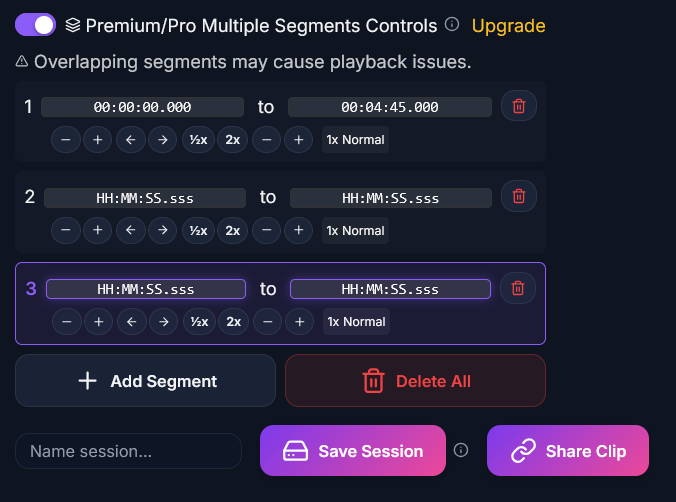
For power users tackling complex material, flip on the Premium/Pro Multiple Segments Controls switch. This unlocks the ability to create multiple independent A/B segments within the same video.
You can set exact timestamps (down to the millisecond) for each section, give each segment its own playback speed (like 1/2x for a tricky solo and 1x for the chorus), and save the entire multi-segment session to revisit later. By packaging your loops and notes into a saved session, you can instantly share your exact practice setup with friends, students, or bandmates using a simple link!
Step 5: Create Playlists & Track Analytics
Don't lose your progress! By creating a free account on WatchOnRepeat, you can organize your saved loops into Custom Playlists. Are you learning a 5-song setlist for a gig? Create a playlist called "Friday Gig" and save all your specific A/B loop segments into it. You can instantly load the entire setlist on your phone or laptop. Furthermore, for Premium and Pro users, your account dashboard unlocks a detailed Analytics tab. Track exactly how many hours you have spent looping videos, which days you practiced the most, and visualize your consistency over time to keep yourself motivated.
Step 6: Use the Built-In Audio Recorder
Practice along with your looped segments by recording your own audio directly in the browser. This is perfect for musicians who want to compare their covers or language learners practicing pronunciation. The audio is stored locally for privacy, and you can download your recordings to compare your performance against the original video in real-time.
Step 7: Master Keyboard Shortcuts
For the best experience, keep your hands on your instrument and use our default keyboard shortcuts to control the video without reaching for your mouse:
- Spacebar: Play / Pause
- [ : Set Loop Start (Point A)
- ] : Set Loop End (Point B)
- \ : Clear current Loop
- Right/Left Arrow: Seek forward/backward 5 seconds
- Shift + Right/Left Arrow: Nudge loop points by 1 second
- Up/Down Arrow: Adjust Volume
Pro-Tip #1: The URL Trick
You can instantly loop any video without copying and pasting! Just go to your browser's address bar and replace youtube, facebook, dailymotion, or vimeo with watchonrepeat. (For Twitch VODs, change twitch.tv to watchonrepeat.com).
Example:
Change: https://www.youtube.com/watch?v=dQw4w9WgXcQ
To: https://www.watchonrepeat.com/watch?v=dQw4w9WgXcQ
Pro-Tip #2: The Bookmarklet
Want to loop videos even faster? Drag our "Loop on WOR" bookmarklet from the app's sidebar directly to your browser's bookmarks bar. The next time you are on YouTube and want to repeat a video, click the bookmark, and it will instantly open here!
WatchOnRepeat Bookmark
Drag the button below to your bookmarks bar. Click it while watching any video on YouTube, Twitch, Facebook, Dailymotion, Vimeo, Mixcloud, Loom, Wistia, and many other supported sites to immediately open and loop it in WatchOnRepeat!
WatchOnRepeatBonus: Unlock Premium & Pro Features
If you are a power user, consider upgrading to our Premium or Pro tiers to unlock the ultimate distraction-free environment. Upgrading removes all site banner ads, giving you a cleaner interface. It also unlocks Advanced Loop Controls, allowing you to save up to 10 or 15 different timestamped notes per video. Pro users can also unlock Custom Hotkey Binding—allowing you to map loop functions to any key on your keyboard or even a Bluetooth foot pedal!